
Marupoyo Controls: Tilt, Brake and Momentum
How Marupoyo's tilt controls work, what the brake does, and how to stop fighting momentum on PS5, Switch 2 and Steam.
Marupoyo has two inputs that matter: tilt and brake. Everything else is the level. That sounds like a minimalist control scheme until you realise how much information the tilt carries. The angle of the floor decides your acceleration, your line, and whether the chick lands on the next platform or slides under it. The brake decides when that sentence ends. For the order the levels introduce those surfaces, see the all-worlds guide→.
This page explains the control model as the game presents it, without inventing button bindings. The beginner guide→ covers the first-hour mindset; this one is for players who understand the idea and still feel like the chick is ignoring them.
The two-axis model
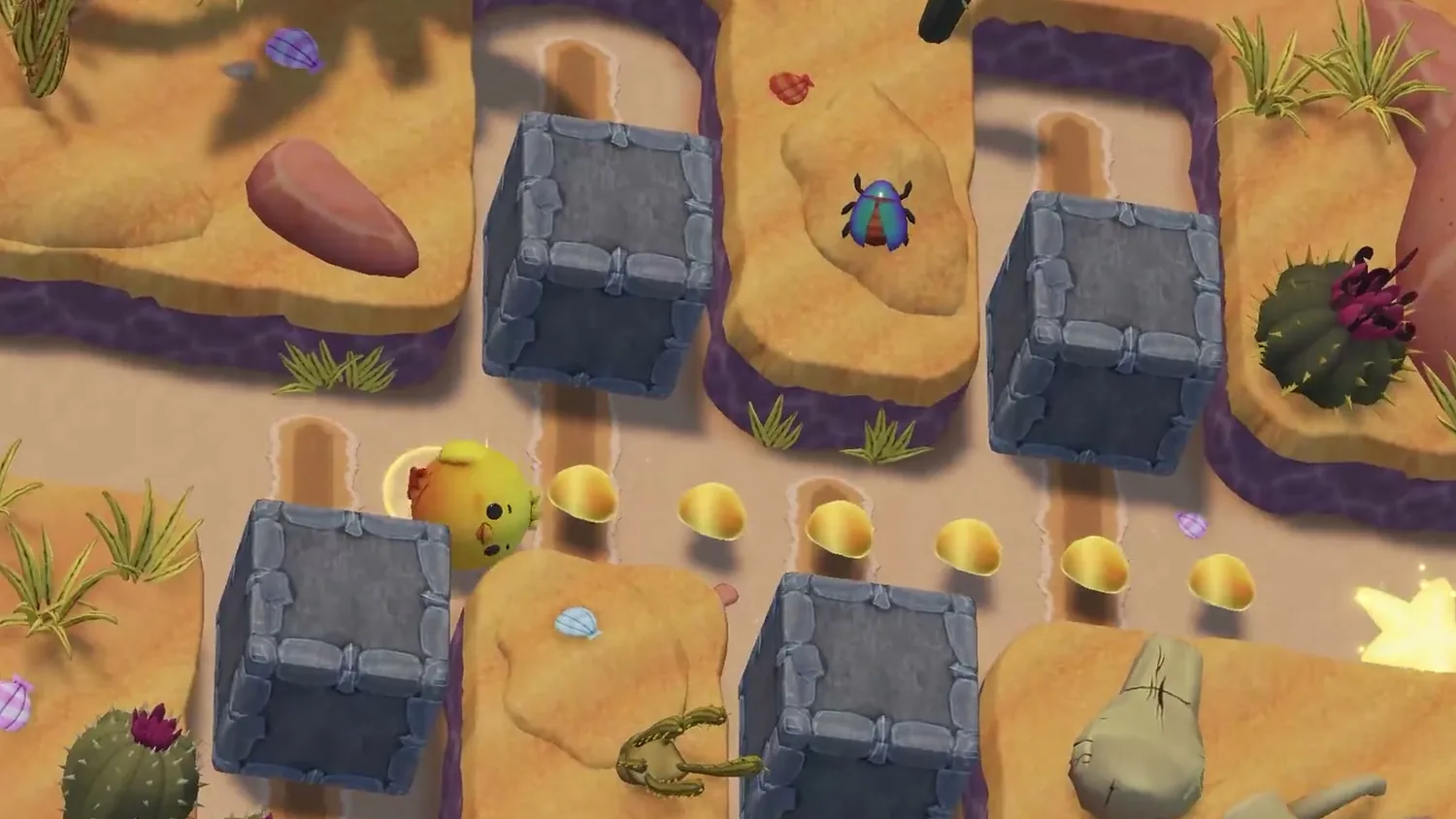
The camera looks down on a diorama. You are not steering a character in screen space; you are tilting the diorama. Push forward and the floor slopes away from you, so the chick rolls forward. Push left and the floor tilts left. The chick follows gravity, which means she keeps moving after you centre the stick.
That lag is the whole game. A character-based platformer lets you stop instantly because the character has legs. Marupoyo's chick is a ball with a beak. She has momentum, and momentum is not interested in your intentions. Learn to read the delay between input and arrival, and the controls stop feeling heavy.
The brake is the counterweight. It removes speed without reversing direction. On a straight, a short tap is enough to bring the chick back under the camera. On a descent, you may need to hold it. On ice, the brake reduces speed slowly, which is exactly what ice should do.
Tilt or stick, motion or not
The game supports motion controls on Switch 2 and uses the DualSense's motion features on PlayStation 5. Steam lists full controller support. If motion is not comfortable, the stick provides the same tilt axis. The difference is feel, not access: a stick gives you a fixed maximum tilt, while motion lets you lean further, which can be more expressive and more tiring.
Do not assume that motion is the "correct" way to play. The level design is built around a tilt range, not around a specific device. A player using a stick can clear the same route. What changes is how quickly you can make a large correction and how steadily you can hold a shallow angle.
On Switch 2, handheld play changes the motion experience because the screen moves with your hands. If that feels unstable, switch to stick tilt or play in tabletop mode. The game does not punish either choice.
The brake is a routing tool
New players use the brake to stop. Experienced players use it to shape a route. There are three common situations where the brake is worth more than speed.
The first is a blind crest. You cannot see the landing, and the level's geometry suggests a drop. Brake before the lip, look over it, then release. If you release too late, you will still be slow when the floor disappears, which is usually better than arriving at full speed.
The second is a tight corner around a wall or a mushroom. The corner is not a steering problem; it is a speed problem. Arrive slower, and the turn happens naturally.
The third is a moving platform or a bouncy surface. These objects add their own velocity. Brake before contact so the combined speed stays readable. If you hit a mushroom at full tilt, the launch can overshoot the collectible line entirely.
What the brake cannot do
The brake cannot stop you in mid-air. Once the chick leaves a ramp, the trajectory is set. It also cannot reverse you. If you are rolling toward a pit, braking reduces the distance you travel but does not send you backwards. The only way back is to let the slope carry you or to restart the level.
This is why "jump" is the wrong mental model. There is no jump button, and there is no air control in the traditional sense. The game's own case study describes the design as removing the platformer's core verb, jumping on demand. Treat every launch as a commitment, and the levels become much easier to read.
Accessibility changes the controls more than you think
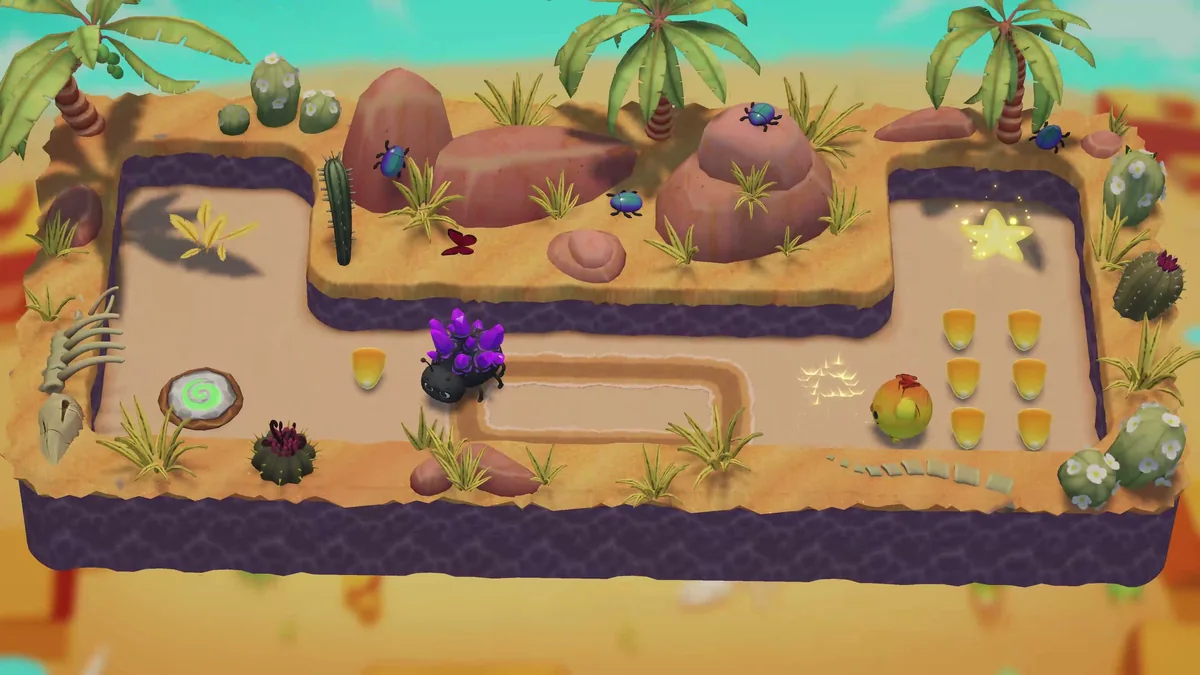
Marupoyo includes a motion-sickness option that turns off floor movement. That is a significant change: the diorama stops shifting under the camera, which can make the tilt feel more abstract but far more comfortable. If the game's camera gives you a headache, try this before you give up on it.
The PlayStation accessibility tags also list options for players who cannot use motion controls, cannot hold buttons, cannot perform rapid presses, and cannot use simultaneous inputs. Separate music, voice and sound-effect volume sliders are included. Control reminders can be displayed on screen. These are not buried experiments; they are part of the game's stated accessibility feature set.
The accessibility guide→ lists the full set of tags and explains which ones affect gameplay rather than presentation.
Platform-specific control notes
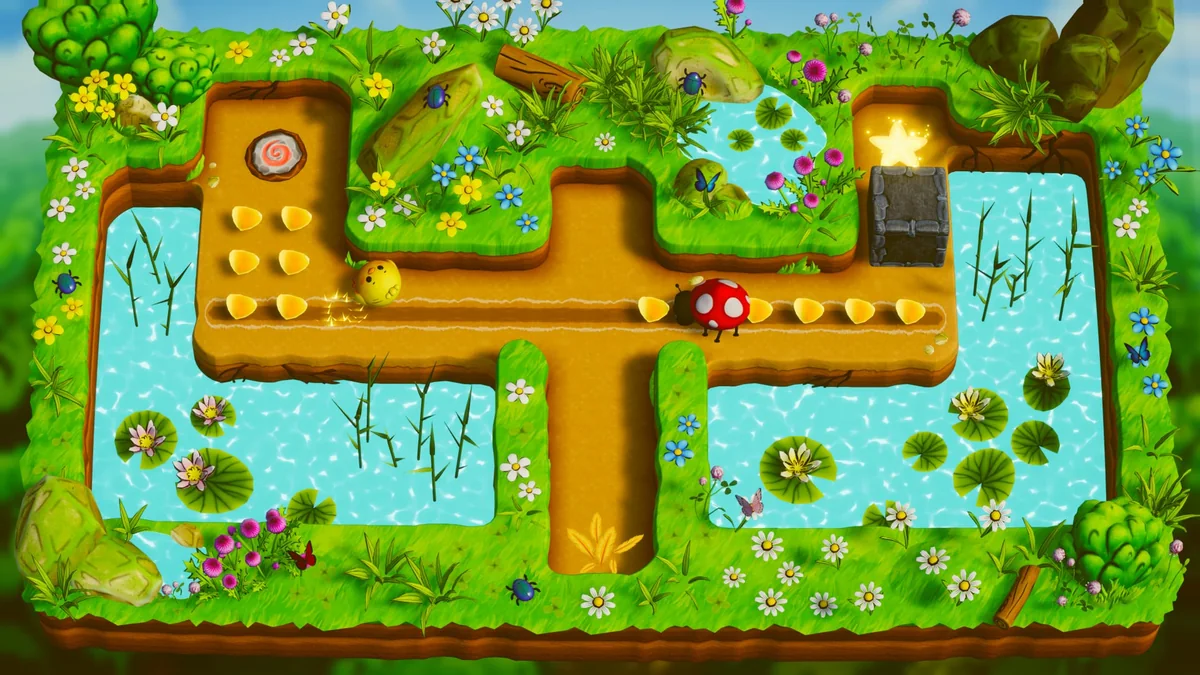
On PlayStation 5, the DualSense's vibration is supported and the store lists adaptive trigger effects as an accessibility toggle. Vibration is cosmetic, but it can help you feel the surface change before you see it. If you disable it, nothing about the route changes.
On Switch 2, the game supports TV, tabletop and handheld play. Motion controls work in all three, but the handheld experience is the one where the screen itself moves. The 120 Hz output is listed for the console; it does not change the physics.
On Steam, the store lists full controller support and Steam Cloud. The Steam demo is a separate free app, which makes it the cheapest way to test whether your controller's motion or stick feels right before buying. The demo guide→ covers what the demo does and does not include.
A five-minute practice routine
Pick the first forest level and roll it three times. On the first pass, never brake. Notice where you overshoot. On the second pass, brake only before drops. On the third pass, try to finish without braking at all. You will probably fail the third pass, and that is useful: it shows you which corners are genuinely impossible without a speed correction and which ones you were simply taking too fast.
Then switch to a snow level and repeat. Ice is the best teacher in the game because it exaggerates every input. If you can hold a shallow line on ice, you can hold one anywhere.
Brake before the corner, not during it. Most early mistakes come from waiting too long to slow down, not from choosing the wrong route.
FAQ
Is there a jump button in Marupoyo?
No. The chick rolls and launches off ramps or bumps. Braking is the only additional action described by the PlayStation and Nintendo store pages.
Can you play Marupoyo with a keyboard?
The Steam page lists full controller support, but it does not advertise a keyboard-only control scheme. A controller is the safe choice, especially if you want motion tilt.
Does the brake stop you completely?
It removes speed, but it does not reverse direction or work in mid-air. On slippery surfaces it takes longer to slow down.
Can I turn off motion controls?
Yes. The game supports stick-based tilt and includes a motion-sickness option that disables floor movement. The PlayStation accessibility tags also confirm play without motion controls.
Official source: Marupoyo on PlayStation ↗
Related
- Marupoyo Beginner Guide: Roll Before You Run→
- Marupoyo Accessibility: Every Option Worth Knowing→
- Marupoyo Family Mode vs Gamer Mode Explained→